
If you are a product manager still running your week the old way, manually writing PRDs, chasing status updates, sitting in unnecessary standups, and spending Sunday nights prepping for Monday planning, this post is for you.
Building a reliable AI workflow for product managers is no longer optional. It is the difference between spending your best hours on prep work and spending them on the decisions that actually shape your product. Over the past year, I have been experimenting with AI across different parts of my PM workflow. Some of this I run regularly. Some I am still refining and building into my routine. What I can say honestly is that the parts I have committed to have made a visible difference in how I prepare, communicate, and show up to the work that actually matters.
This is not a tools list. This is a practical AI workflow built from real experimentation, written so that even if you have never used these tools before, you can follow along and implement it step by step. I have used all five tools in this stack. Some I use daily, some weekly, and a couple I am still working more deeply into my planning process. The prompts and steps below are what I have tested personally and refined over time.
If you want to understand first how AI is changing project management more broadly, I covered that in detail in this post. But this one is about the specific practical system I have built and continue to build.
By the end of this post, you will have a clear starting point, what tools to use, where to go, what to type, and what to expect back.
Why Most PMs Are Getting Their AI Workflow Wrong
The problem is not that PMs are not using AI. Over 73% of product managers now use at least one AI tool daily. The problem is how they use it.
Most PMs open ChatGPT, ask a one-off question, get a generic answer, and move on. That is not a workflow, that is a Google search with better grammar.
The real leverage comes from building a repeatable AI system where each tool handles a specific layer of your week, and you are not reinventing it every Monday morning.
Before I show you the workflow, let me be honest about a mistake I made early on.
The Mistake I Made When I Started
When I first started using AI as a PM, I treated every tool the same way. I would open Claude or ChatGPT and type something vague like: “Help me write a PRD for a notification feature.”
The output was generic. It sounded polished but had no real product context, no user specifics, no metrics, no scope boundaries. I would spend more time fixing it than if I had written it myself.
The turning point was realising that AI output quality is entirely determined by prompt quality. Vague prompt in, vague output out. The workflow I am about to share is built around specific, structured prompts that I have refined over months. Once you understand why each prompt is written the way it is, you will be able to adapt them to your own product and context.
Here is the difference in practice:
❌ Weak prompt:
“Write a PRD for a notification feature”
✅ Strong prompt:
“You are a senior product manager at a B2B SaaS company. Write a PRD for a real-time notification feature for operations managers. Include: problem statement from the user’s perspective, 2 measurable KPIs, 3 user stories in As a / I want / So that format, in-scope and out-of-scope for v1, and 3 open questions for engineering.”
The second prompt takes 30 extra seconds to write. The output is 10 times more useful. Keep this principle in mind for every step in this workflow.
The AI Workflow for Product Managers: Tools You Need and Why
Here is the stack I use and the specific job each tool handles. Each one has a clear lane, they do not overlap.
Linear: Sprint and backlog management with AI built directly in. It reads your backlog, surfaces priorities, and forecasts sprint health. If you currently use Jira for sprint planning, Linear is a faster and cleaner alternative with stronger AI features. Think of it as the starting point of your week.
Claude: My primary writing and thinking tool. I use it for PRDs, sprint goal writing, and anything that needs structured, long-form output. If you are deciding between Claude and ChatGPT for document work, this comparison is worth reading before you choose.
Notion AI: Notion is where our team keeps all documentation, sprint notes, and stakeholder updates. Notion AI is built directly into it. You write rough notes and it formats, polishes, and summarises them. No separate tool to open.
Jira + Cursor: Jira is the issue tracker your engineering team already uses. Cursor is an AI-powered editor that I use to review and rewrite Jira tickets before planning meetings. A quick note on Cursor: it is technically a code editor, but you do not write a single line of code. You use its AI Chat to work with text. Paste a bad ticket in, get a well-structured ticket out. That is it.
ChatGPT: Best for brainstorming, thinking through problems, and stakeholder prep. Where Claude excels at structured output, ChatGPT is faster for open-ended thinking and generating options quickly.
Now let us walk through the week.
How These Tools Connect
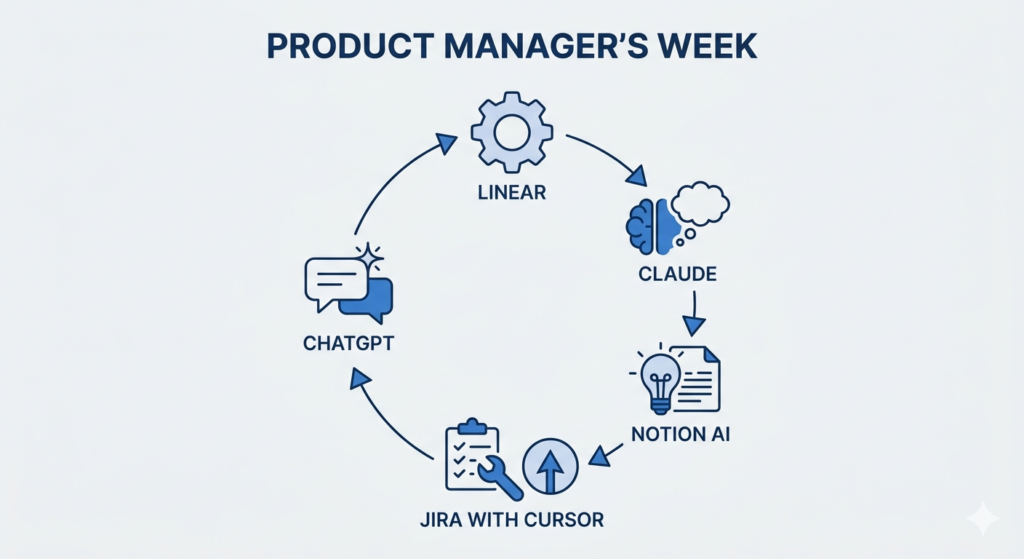
Before jumping into daily steps, here is the bigger picture. These tools form a connected system, not five separate things you use in isolation:
Linear (surfaces priorities) → Claude (turns them into sprint goals and PRDs) → Notion AI (documents and communicates them) → Jira + Cursor (cleans up execution tickets) → ChatGPT (prepares you for the human conversations) → back to Linear (tracks health and closes the loop)
Understanding this flow is important. Each step feeds the next. That is what makes it a system rather than a collection of tools.
Monday: Sprint Planning in Half the Time
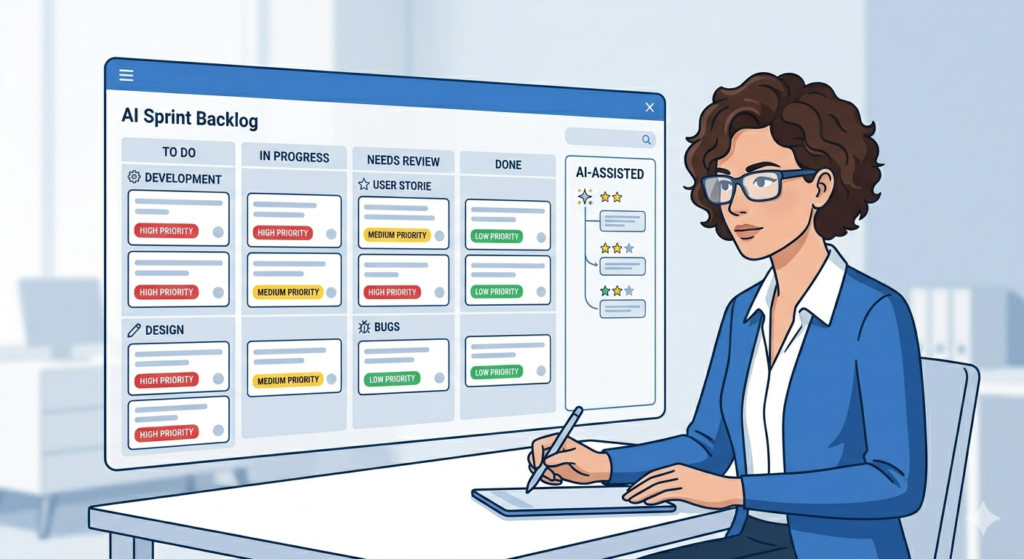
Sprint planning used to consume my entire Monday morning, 3 to 4 hours of backlog grooming, ticket sorting, goal writing, and dependency mapping. With this workflow, it now takes 90 minutes. Here is exactly how.
Step 1: Use Linear Agent to Prepare Your Backlog (15 minutes)
What it is: Linear Agent is an AI assistant built directly into Linear. It can read your entire backlog and answer questions or surface patterns in plain English. You do not configure anything, it is already there when you open Linear.
If you are already using Linear for sprint management, this is the fastest way to start using AI in your planning process. If you are still on Jira for everything, this step is worth trying in Linear on its own before committing to a full migration.
How to access it:
- Go to linear.app and log into your workspace
- Look for the small chat icon in the bottom-right corner of the screen and click it, this opens the Linear Agent panel
- You are now in a conversation with an AI that has full context of your backlog, projects, and team
What to type:
“Read this backlog and pull out repeated themes that we can prioritise for the next sprint. Flag any issues that seem blocked or have been sitting for more than two weeks. Group them by theme.”
What you get back, sample output:
“I found 3 main themes this sprint: (1) Checkout flow bugs, 7 issues, 2 flagged as blocked waiting on design sign-off (2) Onboarding improvements, 4 issues, all unblocked and ready to pull in (3) API performance, 5 issues, 1 stale for 3 weeks with no recent activity
Recommendation: Onboarding is the cleanest theme to commit this sprint. Checkout needs design sign-off first, I would hold those until that clears.”
What to do next: Copy this summary. You will paste it into Claude in Step 2.
Pro Tip: The more consistently your team labels and describes issues in Linear, the better Linear Agent’s recommendations become. Spend 5 minutes at the end of each sprint reviewing labels, it compounds over time.
Step 2: Turn That Summary into Sprint Goals with Claude (20 minutes)
How to access Claude:
- Go to claude.ai in your browser and sign in
- Click New Chat in the left sidebar
- Start with a context-setting message, this is the step most PMs skip, and it is why their Claude output feels generic
First message, always set context:
“I am a product manager at [describe your company in one sentence, e.g., a B2B SaaS company that helps logistics teams track shipments in real time]. My team is [X] engineers and we work in 2-week sprints. Keep this context for everything I ask you in this conversation.”
Claude will acknowledge this. Now paste your sprint planning prompt:
Prompt: “Here is our backlog summary for this sprint:
[Paste your Linear Agent output here]
Our team velocity is approximately [X] story points. We have [Y] engineers this sprint.
Please:
- Recommend which themes to commit to based on capacity and what is unblocked
- Flag any risks or dependencies I should address before the planning meeting starts
- Suggest which items to defer if we need to cut scope, give one reason per item
- Write 3 sprint goals in one clear sentence each, suitable to share with the team and with leadership”
Sample output from Claude:
Sprint Goals: 1. Complete the onboarding redesign so new users reach their first key action within 3 minutes of sign-up. 2. Resolve the top 3 checkout flow bugs causing drop-off at the payment confirmation step. 3. Reduce API response time on the dashboard load by 40% for enterprise accounts.
Risks to address before planning: — Checkout bugs depend on design sign-off. If that is not confirmed by this morning, move them to next sprint. — API performance work may need infrastructure access, confirm with your engineering lead before committing.
Suggested deferrals: — The 3-week stale API issues: defer unless an engineer can own them this sprint. Stale issues in active planning create false capacity estimates and undermine team confidence.
Copy the sprint goals into your Notion sprint doc before the meeting starts. You have just done in 20 minutes what used to take an hour.
Pro Tip: Always give Claude your product context in the first message before asking it to produce anything. Claude carries that context throughout the conversation, so one good setup message at the start saves you from re-explaining your product in every follow-up prompt.
If your team also struggles with estimation at this stage, this post on AI for software project estimation covers how to use AI to get better story point estimates before planning.
Step 3: Fix Ticket Quality with Cursor Before the Meeting (15 minutes)
What Cursor does for PMs: Cursor is an editor with AI Chat built in. You paste any text, a Jira ticket, a requirements doc, meeting notes, and ask the AI to review or rewrite it. No coding involved. Think of it as a smarter version of asking ChatGPT to fix a document, but faster and more focused.
How to get started with Cursor:
- Go to cursor.com and download the app, it installs like any other application
- Open Cursor, it looks like a simple text editor
- In the top menu bar, click View, then click Chat, this opens the AI Chat panel on the right side of the screen
- You are ready to use it
How to use it for Jira tickets:
- Open your Jira board and find any tickets written by engineers or stakeholders, these are usually the vague ones
- Copy the full ticket content, title, description, any notes or comments
- Paste it into the Cursor Chat panel
- Type this prompt below the pasted ticket:
Prompt: “You are a senior product manager reviewing this Jira ticket before sprint planning. Check whether it has: — A clear user story in ‘As a [user], I want [action] so that [outcome]’ format — Specific acceptance criteria that define what done looks like — A definition of done — Any dependencies listed
If any of these are missing, rewrite the full ticket in proper PM format. Keep it concise and clear.”
Sample input, vague ticket as written by an engineer:
Title: Fix login bug Description: Users are having issues logging in. Needs to be fixed ASAP.
Sample output from Cursor:
Title: Fix OTP login failure for email addresses containing special characters
User Story: As a returning user, I want to log in using OTP successfully so that I can access my account without needing to contact support.
Acceptance Criteria: — OTP is delivered within 30 seconds for all email formats, including those containing + and . characters — Login succeeds on the latest two major versions of iOS and Android — An appropriate error message is shown if the OTP has expired
Definition of Done: Tested in QA on iOS and Android. No login failures reported in staging environment for 48 hours.
Dependencies: QA device running latest iOS required for testing.
Copy the improved version back into Jira before the planning meeting. This one step alone eliminates the most painful 20 minutes of every planning session, the part where you try to clarify what a ticket actually means while the whole team waits.
Pro Tip: Do not wait for planning day to do this. Make ticket review a Thursday habit, review next sprint’s likely candidates 3 days before planning. You will walk into Monday with a clean backlog.
Tuesday–Wednesday: Async Communication Without the Overhead
The biggest time drain for most PMs is not the meetings. It is the communication around the meetings, status updates, stakeholder emails, Slack threads that spiral into 40 messages before anything gets resolved.
The visibility problem that comes from scattered communication is something I have written about in depth here. The steps below are the practical fix for your own weekly workflow.
Step 4: Write Your Weekly Status Update with Notion AI (10 minutes)
How to access Notion AI:
- Go to notion.so and open your workspace
- Create a new page, click the + icon in the left sidebar
- Type your raw notes as rough bullet points first. Do not worry about formatting, just get the facts down:
– Checkout bug fix: dev complete, now in QA, on track for Thursday release- Onboarding redesign: blocked on design sign-off, escalating today- API performance: in progress, 2 of 5 tickets closed- Risk: dependency on Team B’s auth changes delayed by 3 days- Next week: sprint review Thursday, new sprint starts Monday
- Select all your bullet points by highlighting them with your mouse
- Click the Ask AI button that appears when you hover over selected text, or press the space bar on a blank line to open the Notion AI menu
Type your instruction:
Prompt: “Turn these bullet points into a professional weekly product update for senior stakeholders. Structure it in 3 short paragraphs: first progress this week, then risks and blockers, then what is coming next. Tone: direct, confident, no jargon.”
Sample output:
This week, the checkout bug fix completed development and entered QA, we are on track for a Thursday release. API performance work is progressing steadily with 2 of 5 tickets resolved. The onboarding redesign remains blocked on design sign-off, which I am escalating today to keep us on schedule.
The main risk this week is a 3-day delay from Team B’s auth changes, which introduces a dependency on our login flow work. I am monitoring this closely and will flag immediately if it impacts our sprint goal.
Next week: sprint review on Thursday, new sprint kicks off Monday. I will share the updated roadmap before the review so stakeholders have context ahead of the session.
Total time: 5 minutes entering your bullets, 5 minutes reviewing and adjusting the output. Done.
Pro Tip: Save this prompt in Notion as a template. Open it every Tuesday, drop in your bullets, run the AI, and send. Make it a ritual, same day, same time, same format. Stakeholders will start to rely on it.
Step 5: Prepare for Difficult Stakeholder Meetings with ChatGPT (15 minutes)
When a tough meeting is approaching, a scope negotiation, a priority conflict, a leadership review where you need to defend a roadmap decision, most PMs either wing it or over-prepare in the wrong direction. ChatGPT changes this completely.
How to access ChatGPT:
- Go to chatgpt.com and sign in
- Click New Chat
- Fill in the prompt below with your actual situation, be as specific as possible. The more context you give, the better the prep:
Prompt: “I am a product manager preparing for a difficult meeting. Here is the full context:
Meeting with: [e.g., VP of Sales] My goal in this meeting: [e.g., explain why we are removing Feature X from the Q3 roadmap] Their likely concern: [e.g., they have already promised this feature to 3 enterprise clients] Background: [e.g., we removed it because engineering capacity shifted to a critical infrastructure fix that protects all clients]
Please help me:
1. Structure my argument in a clear, logical sequence
2. Anticipate their top 3 objections and give me a confident, respectful response to each
3. Suggest how to open the conversation so it creates alignment rather than defensiveness
4. Give me one sentence that summarises my position, something I can repeat calmly if challenged”
Sample output (abbreviated):
How to open: Acknowledge the impact before explaining the decision. Try starting with: ‘I know this affects commitments you have made, and I want to walk you through exactly what changed and what we are doing to address it.’
Your core argument: Moving engineering to the infrastructure fix protects all enterprise clients, including the three waiting on Feature X. Shipping Feature X on an unstable foundation would create more problems than it solves. The delay is in service of the same goal.
Objection 1: “We already promised this to clients.” Response: “You are right, and I want to help you manage that. Can we work together on what to tell them, including a realistic revised date and what they get in the meantime?”
One-sentence position: “We made this call to protect delivery quality for every enterprise client, and I want to make sure we communicate it in a way that preserves their trust in us.”
Keep this open on your screen during the meeting. The difference in how you show up is immediately noticeable, to you and to the room.
Thursday: Deep Work, PRDs and Product Documentation

Thursday is my protected writing day. No standups before noon. No Slack interruptions if I can help it. This is where Claude gives me the biggest leverage of the entire week.
Step 6: Write a First-Draft PRD with Claude (45 minutes total)
The split is roughly 25 minutes of AI doing the heavy lifting, 20 minutes of you doing the actual PM work, adding the context, nuance, and product judgment that only you can provide.
How to do it:
- Go to claude.ai and open a new chat
- Send your context message first, the same way you did in Step 2:
“I am a product manager at [describe your company]. My users are [describe them briefly]. Keep this context for everything in this conversation.”
- Now paste your PRD prompt:
Prompt: “Write a PRD for the following feature: [feature name and a 2–3 sentence description of what it does and why we are building it].
Include these exact sections:
- Problem Statement, written from the user’s perspective, not the company’s perspective
- Goals and Success Metrics, include at least 2 specific, measurable KPIs with a target number
- User Stories, write at least 3 in the format: ‘As a [user type], I want [action] so that [outcome]’
- Scope, list clearly what is IN scope for v1 and what is explicitly OUT of scope
- Open Questions, list 3 to 5 things that still need answers before engineering starts work
- Dependencies, list any teams, systems, or external decisions this feature relies on
The audience is engineering and design. Be specific. Replace any vague phrase like ‘improve user experience’ with a measurable outcome.”
What Claude returns: A complete structured PRD draft across all 6 sections in under 2 minutes.
Your 20-minute job after that:
- Replace any placeholder numbers with your actual baseline metrics
- Add the internal context Claude cannot know, team politics, strategic priorities, past decisions
- Remove anything that does not reflect your product reality
- Tighten the user stories to match your actual user types
The 20-minute refinement is the real PM work. Claude handles the scaffolding so your brain is free for the thinking.
Pro Tip: After Claude writes the PRD draft, send a follow-up message in the same chat: “Now review this PRD and tell me the 3 weakest sections, where is the thinking vague or the scope unclear?” Claude will critique its own output and flag gaps you might have missed. This second step takes 2 minutes and makes a significant difference to the final quality.
Step 7: Polish Your PRD Documentation with Notion AI (10 minutes)
Once your PRD is reviewed and ready, paste it into Notion. Then use Notion AI to make it useful for every type of reader on your team.
A) Generate an executive TL;DR at the top
Most executives will not read an 800-word PRD. Put a 3-sentence summary at the very top.
- Place your cursor at the top of the Notion page, above the PRD content
- Press the space bar to open Notion AI
- Type: “Write a 3-sentence executive summary of this PRD. Cover the problem we are solving, what we are building, and the expected business impact.”
- Notion AI inserts the summary, executives get the gist, engineers get the full spec
B) Turn the PRD into a design review agenda
- Highlight the Goals and Open Questions sections of your PRD
- Click Ask AI and type: “Turn these into a 5-point meeting agenda for a design review. Start with context-setting, end with the specific decisions we need to make in the meeting.”
- Copy the agenda directly into your calendar invite
C) Draft an internal changelog entry
- At the bottom of the PRD, place your cursor in a blank section
- Press the space bar and type: “Write a one-paragraph changelog entry for this feature for our internal product newsletter. Audience: the wider team. Tone: clear and energising without being salesy.”
All three of these used to be tasks I was doing at 8pm the night before a design review. Now they take 10 minutes inside the same Notion page I am already working in.
Friday: Retrospectives and Next Sprint Setup
Step 8: Synthesise Your Retro with ChatGPT (10 minutes)
Throughout the week I collect retro input in a shared Notion page. Everyone on the team adds bullets under three simple headings: Went well / Did not go well / Try next sprint.
On Friday morning I copy everything and bring it into ChatGPT.
How to do it:
- Go to chatgpt.com and open a new chat
- Paste all your retro notes, then add this prompt:
Prompt: “Here are retrospective notes from my product team this sprint:
[Paste all retro notes here]
Please:
- Identify the top 3 themes, group similar feedback together rather than listing every bullet separately
- For each theme, suggest one specific and actionable improvement we could commit to next sprint
- Flag any issue that has appeared in more than one sprint, that is a signal of a systemic problem, not a one-off
- Write a 2-sentence retro summary I can share with my manager or leadership”
Sample output:
Theme 1: Communication gaps between PM and engineering during the sprint Action: PM publishes a written sprint brief every Monday morning before standup. No more verbal-only context.
Theme 2: Too many scope changes mid-sprint breaking team focus Action: Introduce a scope freeze after Day 2 of each sprint. All new requests go into next sprint’s backlog.
Theme 3: QA bottleneck at the end of every sprint causing last-minute stress Action: Bring QA into ticket review during planning, not after development is already done.
Manager summary: This sprint’s retro surfaced recurring themes around planning clarity and QA timing. We are committing to two structural changes next sprint and will measure impact in the following retro.
Retro done. Summary written. Action items defined. In 10 minutes.
Pro Tip: Paste retro notes from the last 3 sprints together and ask ChatGPT: “What themes keep appearing across all three sprints?” Recurring patterns are your most important signal, they tell you what to fix at the process level, not just the sprint level.
Step 9: Friday Sprint Health Check with Linear (5 minutes)
Before you close out the week, do one final check in Linear.
How to do it:
- Open Linear and click Cycles in the left sidebar
- Select the current active cycle, you will see a progress bar showing completed vs. remaining issues
- Click Insights in the top right of the cycle view to see velocity, completion rate, and any issues flagged as at-risk
If you are over-committed, open Linear Agent (the chat icon in the bottom-right) and type:
“Which issues in this cycle are least connected to our sprint goals? Which can we safely move to the next cycle without impacting team commitments or user outcomes?”
Linear Agent reads your actual sprint goals and ticket descriptions and gives you a specific deferral recommendation, not a gut call. This is the data-informed decision that used to require a 30-minute conversation on Friday afternoon.
For teams that want to go deeper on which metrics to actually track inside Linear week over week, this post on agile metrics and predictable delivery covers exactly that.
3 Mistakes to Avoid When You Start This Workflow

I made all three of these. Learning them the hard way cost me weeks.
Mistake 1: Trusting AI output without reviewing it Claude and ChatGPT will confidently produce something that sounds right but contains assumptions that do not match your product. Always spend 10 minutes reviewing before you share anything with your team or stakeholders. The output is a starting point, not a finished product.
Mistake 2: Using the wrong tool for the wrong job Early on I was using ChatGPT for everything, PRDs, ticket rewrites, status updates, all of it. The quality was inconsistent. Each tool in this stack has a specific lane for a reason. Claude for structured documents. ChatGPT for thinking through options. Notion AI for in-context editing. Cursor for improving existing text. Mixing them up gives you mixed results.
Mistake 3: Implementing everything in week one I tried to run the full workflow from day one. It was overwhelming and I dropped most of it by Wednesday. Start with one step. Use it for a full week until it feels automatic. Then add another. The system compounds, but only if each piece becomes a habit before you add the next.
What Changes When Product Managers Use an AI Workflow Consistently
I want to be honest here rather than give you a table of suspiciously clean numbers. Productivity gains from AI are personal and messy. They depend on your team, your tools, your existing habits, and how consistently you actually run the workflow.
What I can tell you from my own experience is this. The prep work feels significantly lighter. The cognitive load of Monday morning planning is noticeably different when you walk in with sprint goals already drafted and tickets already cleaned up. Writing a status update no longer feels like a task I have to find energy for. PRD drafts no longer start from a blank page.
The shift is less about hours saved on a spreadsheet and more about where your mental energy goes. Instead of spending the best part of your morning on scaffolding work, you spend it on the decisions and conversations that actually move things forward.
According to broader industry research, PMs who embed AI into their daily workflows report saving an average of 2 to 4 hours per week on documentation and communication tasks alone. In my experience, the bigger gain is qualitative. You show up to meetings better prepared. Your documents are more structured. Your stakeholder communication is more consistent. That compounds over time in ways that are hard to put a number on but easy to feel.
What AI Cannot Replace, And Should Not
I want to be honest about this. AI did not make me a better PM by thinking for me. It made me a better PM by removing the cognitive overhead that was blocking my best thinking.
The judgment calls, what to build, what to cut, how to read a room in a difficult stakeholder conversation, how to motivate a team that is burning out, those are still entirely mine. AI gives me faster scaffolding. I still have to build the house.
The PMs who will struggle with AI are those who use it as a shortcut for thinking. The ones who win are those who use it as a shortcut for preparation, so they can think better when it counts.
How Long Does It Take to Set This Up?
A question I get often: how long before I can actually run this workflow?
Here is the honest answer:
- Creating accounts for all five tools: 30 to 45 minutes total
- First time using each tool: 20 to 30 minutes of trial and error per tool
- Running the full workflow end to end: Week 2 or 3
The setup investment is a few hours spread across your first two weeks. After that, the time savings compound every single sprint.
Where to Start: Your 4-Week AI Workflow Ramp-Up Plan for Product Managers
Do not try to implement all 9 steps in week one.
Week 1, Start with Step 5 (ChatGPT stakeholder prep) Zero setup required. Use it before your next difficult meeting. By the end of the week you will feel the difference in how you show up to tough conversations, and so will the people in the room.
Week 2, Add Step 4 (Notion AI status update) Your stakeholders start getting a consistent, polished weekly update in under 10 minutes. Watch how quickly they begin to rely on it.
Week 3, Add Step 6 (Claude PRD writing) Write your next PRD with Claude. Compare the time and quality against your last manual draft. The difference will be the moment this workflow becomes permanent for you.
Week 4, Add Steps 1, 2, 3 and 9 (Linear + Cursor for planning and health check) By now the rest of the workflow feels natural. Adding the planning layer completes the loop, you are now running your entire week with AI supporting every major task.
By the end of week four you will have a system. And once you have a system, you stop being reactive and start operating like the senior PM you want to be.
Related Posts
- How AI Is Changing Project Management in 2026, the broader context behind why this workflow matters now
- AI for Software Project Estimation, how to use AI to improve story point accuracy before planning
- The Software Delivery Visibility Problem, why status updates break down and how to fix them at the system level
- Agile Metrics for Predictable Delivery, the metrics to track in Linear for sprint health and team velocity

Jawed Shamshedi is a Senior Technical Project Manager and Software Delivery Leader with 20+ years of experience in IT and 10+ years in technical project management. He holds PMP®, SAFe® 6 RTE, PRINCE2, and MCP certifications and has led software delivery across e-commerce, finance, healthcare, and SaaS domains. Based in New Delhi, working with clients worldwide.